> For the complete documentation index, see [llms.txt](https://docs.spicychat.ai/llms.txt). Markdown versions of documentation pages are available by appending `.md` to page URLs; this page is available as [Markdown](https://docs.spicychat.ai/product-guides/group-chat.md).
# Group Chat
Roleplay like never before
**Group Chats** bring multiple Chatbots into one shared conversation, allowing them to interact not only with you, but also with each other. Instead of a one-on-one exchange, a Group Chat feels more like stepping into a small world — where several characters coexist, react, argue, collaborate, and move the story forward together.
With **2 to 10 Chatbots** in a single chat, Group Chats enable richer roleplay, layered storytelling, and more dynamic scenes where relationships, personalities, and events can unfold naturally.
***
### **Discovering Public Groups**
You can either create your own groups or explore **public Groups** created by other users directly from the homepage and chat with them. Groups are shown mixed with chatbots on the homepage. If you wanna browse groups only, you can use the Filters to browse them by the size of members.
* **Small (2–4)**
* **Medium (5–7)**
* **Large (8–10)**
***
### **How to Create a Group**
#### **1. Access Group Creation**
Open the side menu and go to **Create → Group**. This will take you to the Group creation page which is a bit similar to Chatbot Creation page.
#### **2. Set the Group’s Identity**
Start by defining how your Group looks and how it’s presented to others.
* **Cover Image:** Upload an image or generate one.
* **Group Name:** A short name for your Group.
* **Title:** A brief description explaining what the Group is about. This helps users understand the theme at a glance.
#### **3. Add Group Members**
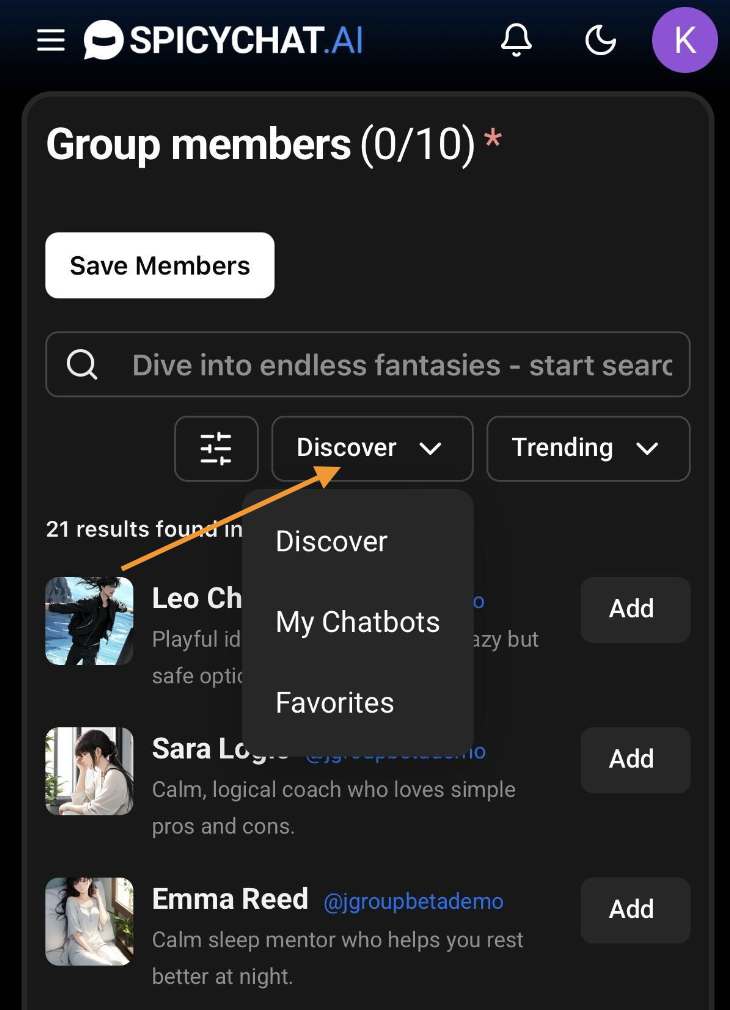
Click **Add Members** to open the selection screen. Every Group must have **at least 2 and no more than 10 members**.
You can browse and select Chatbots in several ways:
* Search by name
* Browse using tags
* Sort by different discovery options
* Browse your Favourites
By default, you’ll be browsing the **Discover** feed, which shows public chatbots.\
If you want to add your own private Chatbots, switch the dropdown from **Discover** to **My Chatbots**. This allows you to include bots you’ve created yourself.
Once you’ve selected your members, click **Save Members** to return to the Group setup page.
#### **4. Configure Chat Settings**
**Who Sends the First Message? (Optional)**
You can choose which Chatbot starts the conversation.
* If you select a chatbot, that chatbot will send the first message.
* If you select none, the Group Chat will start the chat with the greeting message coming from the group name.
**Greeting (Required)**
The Greeting is the opening message that appears when a new chat begins. It sets the tone and introduces the scene.
**Scenario (Optional, Recommended)**
The Scenario provides shared background context for all characters. It helps the Group stay focused and consistent, especially in story-driven roleplay.
If you want to reuse the same Group for different situations, you can leave this empty and guide the direction of the story through your messages instead.
#### **5. Visibility & Member Compatibility**
Your Group’s visibility affects **both who can see it and which chatbots can be added**.
| Group Visibility | Allowed Chatbot Types | Best Used For |
| ---------------- | --------------------------- | ------------------------------------------------------ |
| **Public** | Public only | Fully discoverable Groups. Subject to moderation. |
| **Unlisted** | Public + Unlisted | Sharing via link without appearing in public listings. |
| **Private** | Public + Unlisted + Private | Personal use and Groups with private bots. |
{% hint style="info" %}
All groups are moderated like regular chatbots, only public Groups will undergo human moderation before becoming publicly available.
{% endhint %}
#### **6. Saving or Creating Your Group**
Once all required fields are complete, you can either click **Create Group and Chat** to publish the Group and start chatting immediately, or **save it as a Draft** to finish and publish later. Drafts can be accessed and edited anytime from **My Creations → Groups**.
{% hint style="info" %}
**Please note:** Drafts are saved locally on your device. They can only be accessed from the same browser and device and will be lost if you clear your browser cache.
{% endhint %}
***
### **How Group Chat Works**
Once inside a Group Chat, you control how the conversation flows.
After a chatbot sends a message, a **Responder Selector** appears below the chat. This lets you decide who speaks next.
#### **Response Control**
* **Manual Selection:** You can click any character to make them respond next.
* **Auto Response (Premium):** With Auto response, the AI automatically selects the next suitable speaker based on the context when the user sends a message. If the message is sent by another characters, you simply click on Next button and system will pick the speaker. Auto Response is enabled on default and can be disabled in the chat settings.
* **Free Users:** Auto Response is disabled. You must manually choose the next responder.
***
#### **Context In Group Chats**
Since there are more than one chatbots and context memory is limited, to generate a response, only the persona of the user and the chatbot generating the response are added into the context. However, previous messages and memories are also added in the context so that the story is coherent and flows naturally.
{% hint style="info" %}
Group Chat performs better with the higher context memory and larger models, for the best possible experience, upgrade to one of our subscription tier.
{% endhint %}
***
### **Managing Your Groups**
You can manage all your Groups from **My Creations → Groups**. From there, you can:
* View your published Groups
* Access and edit drafts
* Update group members or settings
* Remove a Group
***
### **Best Practices & Tips**
For the best Group Chat experience:
* **Choose compatible characters.** Characters from similar worlds or storylines work best together. Very broad or open-ended bots can derail focused roleplay.
* **Keep the size reasonable.** While up to 10 members are allowed, Groups with **fewer than 6 characters** tend to stay more coherent.
* **Guide the story.** You can observe and let characters interact, but stepping in occasionally helps keep the plot aligned with your goals.
* **Context matters.** Group Chats benefit greatly from higher context memory tiers and bigger models, especially for long or complex roleplays.
{% hint style="info" %}
For more tips and ticks, we recommend you to join our [Discord Community](https://discord.gg/spicychatai) and interact with fellow creators where they share their best practices in the community.
{% endhint %}
***
### **Current Limitations**
To ensure stability and performance, Group Chats do not support:
* **Text-to-Speech (TTS)**
* **Image Generation In Conversation**
* **Sending Images To Group Chat**
We hope that you'll enjoy this new and richer roleplay experience.
***
FAQ
What happens if a Chatbot in a Group is removed from the platform?
If a Chatbot is removed, it will be automatically removed from the Group. In existing messages, the Chatbot’s name will be replaced with the Group Name. If the number of remaining members drops below 2, the Group will become unusable until new members are added.
Is Group Chat available to all users?
Yes. Group Chats are available to both free and premium users. Premium users have access to Auto Response (where the system selects the most suitable speaker) and benefit from longer context memory and larger models, while free users manually choose the next responder.
Can the group or chatbot creator see the messages I send?
Your interaction with the chatbots and groups on our platform are always 100% confidential, no-one can see your interactions with any of the chatbots or groups.
---
# Agent Instructions
This documentation is published with GitBook. GitBook is the documentation platform designed so that both humans and AI agents can read, navigate, and reason over technical content effectively. Learn more at gitbook.com.
## Querying This Documentation
If you need additional information that is not directly available in this page, you can query the documentation by asking a question.
Perform an HTTP GET request on the following URL with the `ask` and `goal` query parameters:
```
GET https://docs.spicychat.ai/product-guides/group-chat.md?ask=&goal=
```
`ask` is the immediate question: it should be specific, self-contained, and written in natural language.
`goal` is what the user is ultimately trying to achieve, the reason they need the answer. Sharing it helps GitBook give you a better, more relevant answer. A goal is most helpful when it describes the outcome the user wants rather than restating the question. For example, with `ask=how do I create an API token`, a goal like `automate deployments from our CI pipeline` lets GitBook tailor the answer to that use case.
The response will contain a direct answer to the question and relevant excerpts and sources from the documentation.
Use this mechanism when the answer is not explicitly present in the current page, you need clarification or additional context, or you want to retrieve related documentation sections.