> For the complete documentation index, see [llms.txt](https://docs.spicychat.ai/llms.txt). Markdown versions of documentation pages are available by appending `.md` to page URLs; this page is available as [Markdown](https://docs.spicychat.ai/product-guides/rulebooks/your-first-rulebook-in-10-minutes.md).
# Your first Rulebook in 10 minutes
You will make an Affection meter for any character, test it, and attach it. You start from a Starter that already works, so there is nothing to write from a blank page. No AI rule writing experience needed.
**Step 1. Create** Open **Rulebooks** in the main menu and tap **Create Rulebook**. Scroll to **Start from a template**, tap **Starter: Affection**, then **Use this template**. The Editor opens with your own private copy.
Scroll to Start from a template and pick a Starter
**Step 2. Make it yours** In Properties, change the name (for example "Slow burn") and the description. Leave Visibility on Private. The cover and tags come from the Starter; you can change them later.
**Step 3. Look at the meter** Open the Meters tab. There is one Bar meter, Affection, from 0 to 100 that starts at 30. Rename it "Trust" if you like. Everything else can stay.
The Bar meter
**Step 4. Read what moves it** Under AI evaluation, the Starter has 7 AI rules. Each one is a yes or no question about the last exchange, with an impact:
| Condition | Impact |
| ------------------------------------------------------------------- | ------ |
| `{{user}}` gives `{{char}}` a sincere compliment | +4 |
| `{{user}}` helps, comforts or stands up for `{{char}}` | +8 |
| `{{user}}` insults, mocks or belittles `{{char}}` | -8 |
| `{{user}}` lies to `{{char}}`, breaks a promise, or humiliates them | -15 |
Change one number, for example make the lie cost -20. Decay is already on: -1 every 3 quiet turns, so the meter slips slowly if the user does nothing about it.
**Step 5. Change a level** Open the Influence rules tab. The meter has four levels: Cold, Warming up, Close and Devoted. Each level has a status line that users see and an instruction for the model. Rewrite the Cold instruction in your character's voice, for example: "Keep answers short. Do not share personal details. Change the subject when asked about the past."
Levels for the meter
**Step 6. Playtest** Open the Playtest panel. Drag the meter to 10 and see the Cold status line. Write a bot message ("She looks at you, unsure."), then a user message ("I brought you the book you mentioned last week."), and tap Send & evaluate. The trace shows which questions were answered yes and how the meter moved. Try "I never said that, you're imagining things" and watch it drop.
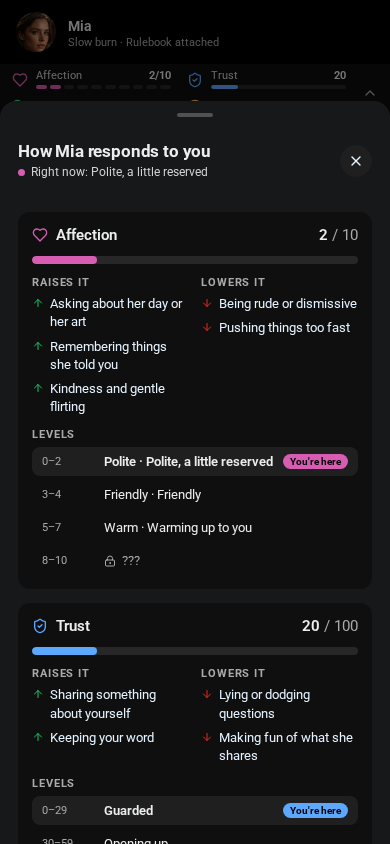
**Step 7. Save and attach** Tap Save. Open one of your characters > Edit > Rulebook > pick your Rulebook. New chats with that character now show the bar. See Using a Rulebook in chat for what players see.
What the chat shows after you attach the Rulebook
## Prefer to build it yourself?
Pick **Start from scratch** instead in Step 1. Then: Properties (name and description; add a cover with Generate and at least 2 tags only if you plan to go Public), Meters tab > Add meter > Bar, name it, Min 0, Max 100, Starts at 20. Add two AI rules such as "`{{user}}` does something kind or thoughtful for `{{char}}`" (+5) and "`{{user}}` lies to `{{char}}` or breaks a promise" (-10), turn on Decay, and add 3 or 4 levels with a status line and an instruction each. Then Playtest, Save and attach as above.
**What to do next** Look at the other Starters to see a Story clock, money, dice or two meters that affect each other. Add a win and a lose ending with Combined rules.
***
**Up next:** See what players see in the chat, and how to attach your Rulebook.
---
# Agent Instructions
This documentation is published with GitBook. GitBook is the documentation platform designed so that both humans and AI agents can read, navigate, and reason over technical content effectively. Learn more at gitbook.com.
## Querying This Documentation
If you need additional information that is not directly available in this page, you can query the documentation by asking a question.
Perform an HTTP GET request on the following URL with the `ask` and `goal` query parameters:
```
GET https://docs.spicychat.ai/product-guides/rulebooks/your-first-rulebook-in-10-minutes.md?ask=&goal=
```
`ask` is the immediate question: it should be specific, self-contained, and written in natural language.
`goal` is what the user is ultimately trying to achieve, the reason they need the answer. Sharing it helps GitBook give you a better, more relevant answer. A goal is most helpful when it describes the outcome the user wants rather than restating the question. For example, with `ask=how do I create an API token`, a goal like `automate deployments from our CI pipeline` lets GitBook tailor the answer to that use case.
The response will contain a direct answer to the question and relevant excerpts and sources from the documentation.
Use this mechanism when the answer is not explicitly present in the current page, you need clarification or additional context, or you want to retrieve related documentation sections.