> For the complete documentation index, see [llms.txt](https://docs.spicychat.ai/llms.txt). Markdown versions of documentation pages are available by appending `.md` to page URLs; this page is available as [Markdown](https://docs.spicychat.ai/product-guides/rulebooks/using-a-rulebook-in-chat.md).

# Using a Rulebook in chat

## Attach it to

* A character (Edit character > Rulebook). Every new chat with that character uses it.
* A persona (Edit persona > Rulebook). Applies to new chats with any character while that persona is selected. A persona Rulebook wins over the character's.
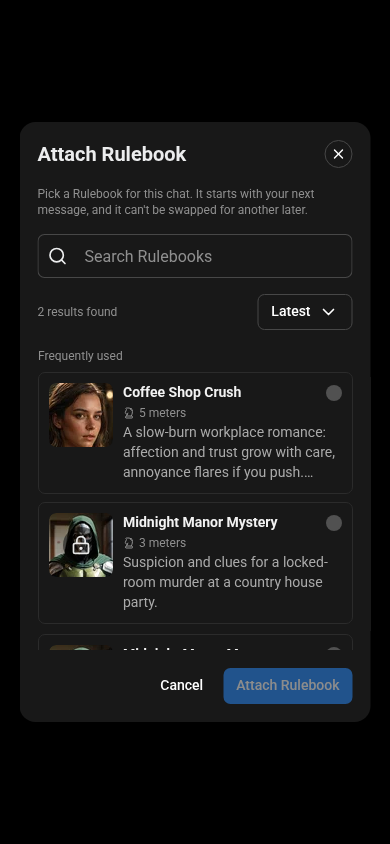
* One chat (chat menu > Attach Rulebook). You can do this before your first message; the chat starts and the Rulebook is attached. It replaces the character's or persona's Rulebook for that chat only.

A character's or persona's Rulebook only applies to chats created after that Rulebook. Older chats keep running without it. A Rulebook attached to one chat always applies, whatever its date.

On web, the chat's Attach Rulebook picker puts a **Frequently used** group on top of your list: up to 5 of the Rulebooks you attach most, counted on this device only. The group shows once you have attached Rulebooks 2 times; another device counts its own.

<figure><img src="https://3060264960-files.gitbook.io/~/files/v0/b/gitbook-x-prod.appspot.com/o/spaces%2FZHNBN3T5KDxoXWSU7L3d%2Fuploads%2FUQHSE6jQXjVRvu8oWhiM%2Frulebooks-480-attach-frequently-used.png?alt=media" alt="The chat picker with the Frequently used group" width="390"><figcaption><p>The chat picker with the Frequently used group</p></figcaption></figure>

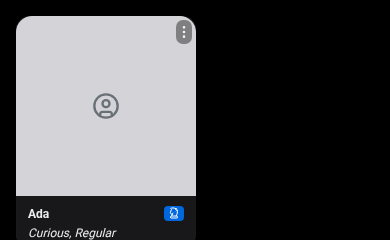
Persona cards show a small Rulebook badge when a Rulebook is attached, so you can tell which personas run one.

<figure><img src="https://3060264960-files.gitbook.io/~/files/v0/b/gitbook-x-prod.appspot.com/o/spaces%2FZHNBN3T5KDxoXWSU7L3d%2Fuploads%2FZ9WMr0jOh9TWje7mT6Ng%2Frulebooks-480-persona-badge.png?alt=media" alt="A persona card with the Rulebook badge" width="390"><figcaption><p>A persona card with the Rulebook badge</p></figcaption></figure>

Public characters need a reviewed Rulebook (Public or Unlisted). A Private Rulebook can only go on your private characters and personas.

## Remove it from a chat

Chat menu > Remove Rulebook. The chat goes back to the persona's or character's Rulebook if there is one, otherwise it runs without meters. You can attach another one afterwards.

## What the user sees

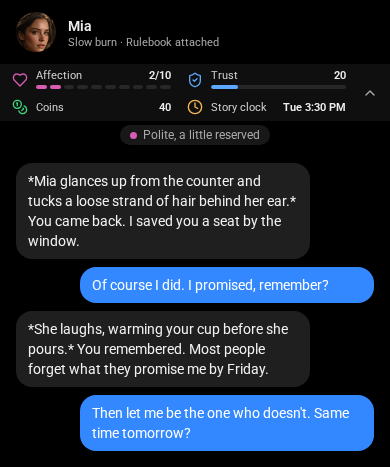
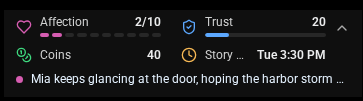
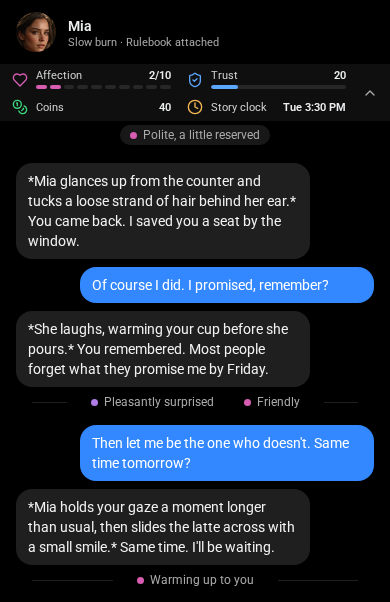
The meter strip above the chat with up to 8 visible meters (the first 4 in one row, "+N more" opens the rest and stays open on this device), a status line under them (tap it to show the full line when it is cut, tap again to close it; on desktop, hover shows it), and a small chip when the strip is collapsed (a Story clock shows the weekday and time there, for example "Tue 18:40").

<figure><img src="https://3060264960-files.gitbook.io/~/files/v0/b/gitbook-x-prod.appspot.com/o/spaces%2FZHNBN3T5KDxoXWSU7L3d%2Fuploads%2FyoFJM1f4bNpKPzwzhhIv%2Frulebooks-hud-v2-fit.png?alt=media" alt="Meter strip in the chat" width="390"><figcaption><p>Meter strip in the chat</p></figcaption></figure>

<figure><img src="https://3060264960-files.gitbook.io/~/files/v0/b/gitbook-x-prod.appspot.com/o/spaces%2FZHNBN3T5KDxoXWSU7L3d%2Fuploads%2F4QGNvGy1iCqyU5FFjQwF%2Frulebooks-d470-hud-cut-fit.png?alt=media" alt="A long status line is cut on a small screen" width="363"><figcaption><p>A long status line is cut on a small screen</p></figcaption></figure>

<figure><img src="https://3060264960-files.gitbook.io/~/files/v0/b/gitbook-x-prod.appspot.com/o/spaces%2FZHNBN3T5KDxoXWSU7L3d%2Fuploads%2FEjTWUGLj303SlOLJbzHM%2Frulebooks-d470-hud-open-fit.png?alt=media" alt="Tap the status line to read all of it" width="363"><figcaption><p>Tap the status line to read all of it</p></figcaption></figure>

A change chip after each reply (+5, "Rolled 17", "Not enough" when a spend is refused).

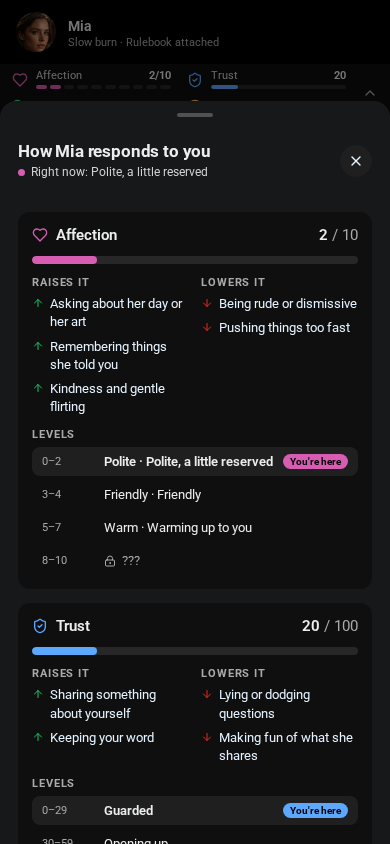
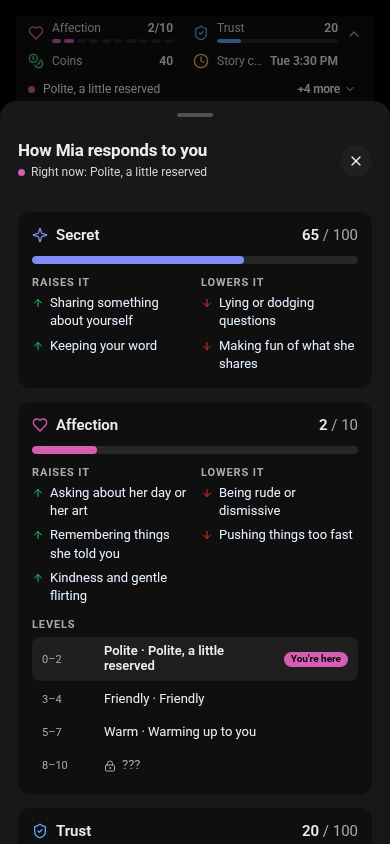
The explanation sheet (tap the Rulebook name): what raises and lowers each meter, the levels the chat has already visited (others show as ???), and the Rulebook name, version and creator. Hidden meters are mentioned as "also reacts to things the creator keeps hidden" but never shown. Panel only meters stay out of the strip but keep their row in this sheet and in the move notes.

<figure><img src="https://3060264960-files.gitbook.io/~/files/v0/b/gitbook-x-prod.appspot.com/o/spaces%2FZHNBN3T5KDxoXWSU7L3d%2Fuploads%2FOkxxkArj3jc3rvubW9LU%2Frulebooks-hud-sheet-v2.png?alt=media" alt="The explanation sheet" width="390"><figcaption><p>The "How <code>{{char}}</code> responds to you" sheet</p></figcaption></figure>

<figure><img src="https://3060264960-files.gitbook.io/~/files/v0/b/gitbook-x-prod.appspot.com/o/spaces%2FZHNBN3T5KDxoXWSU7L3d%2Fuploads%2FAuzyXKTtDEueLj1Z8IDr%2Frulebooks-480-hud-panel.png?alt=media" alt="A Panel only meter keeps its row in the sheet" width="390"><figcaption><p>A Panel only meter keeps its row in the sheet</p></figcaption></figure>

Optional "Status changes in chat": a line under a reply each time the status changes, including a die's first roll.

<figure><img src="https://3060264960-files.gitbook.io/~/files/v0/b/gitbook-x-prod.appspot.com/o/spaces%2FZHNBN3T5KDxoXWSU7L3d%2Fuploads%2Fw4CjD4NqN3gZ3LACTMf7%2Frulebooks-status-timeline-v2-fit.png?alt=media" alt="Status changes in the chat timeline" width="390"><figcaption><p>Status changes in the chat timeline</p></figcaption></figure>

## What the user never sees

Your instructions, AI rules, keywords, triggers and hidden meter values. Write them for the model, not for the player.

## Settings users control

* Interactive features off: the meters freeze where they are and the character chats normally.
* Hide meters: the strip and the status line disappear, the meters keep running.
* Change a value: if the creator turned on "Players can change this value", open the meter in the explanation sheet and tap Change value. Bar and Pips stay between their min and max, a Number keeps its precision, and a Story clock takes a date and time (or only a date for clocks that count days). The change chip shows "Changed by you".

## Changing a value

It applies to the reply on screen, and the next reply continues from the new value. It is not a turn: no AI check, no triggers, no time passes. Reaching a level this way reveals it. Regenerating that reply or switching to another reply shows that reply's own values, so the change is lost there. It also works while interactive features are off.

## Regenerate, edit, branch

Every reply saves the meter state at that point. Regenerating or switching to another reply restores the meters from that point, so trying a different reply never double counts.

A regenerate keeps the turn's clock step and turn state: the Story clock does not advance again, and things like "every N turns" counts stay where they were. The /cmd text you write is still evaluated as the user's message, so keywords and AI rules react to it like they do to a normal message.

## Edits to a Rulebook

Saving a Private Rulebook applies to every chat that uses it from the next message. A Public or Unlisted change goes live after review; until then chats keep the last approved version. As the creator you can play the pending version in your own chats with [Save for testing](/product-guides/rulebooks/visibility-review-and-versions.md#save-for-testing-and-submit-for-review).

***

**Up next:** Choose the right meter for what you want to track.


---

# Agent Instructions
This documentation is published with GitBook. GitBook is the documentation platform designed so that both humans and AI agents can read, navigate, and reason over technical content effectively. Learn more at gitbook.com.

## Querying This Documentation
If you need additional information that is not directly available in this page, you can query the documentation by asking a question.

Perform an HTTP GET request on the following URL with the `ask` and `goal` query parameters:

```
GET https://docs.spicychat.ai/product-guides/rulebooks/using-a-rulebook-in-chat.md?ask=<question>&goal=<user_goal>
```

`ask` is the immediate question: it should be specific, self-contained, and written in natural language.
`goal` is what the user is ultimately trying to achieve, the reason they need the answer. Sharing it helps GitBook give you a better, more relevant answer. A goal is most helpful when it describes the outcome the user wants rather than restating the question. For example, with `ask=how do I create an API token`, a goal like `automate deployments from our CI pipeline` lets GitBook tailor the answer to that use case.

The response will contain a direct answer to the question and relevant excerpts and sources from the documentation.

Use this mechanism when the answer is not explicitly present in the current page, you need clarification or additional context, or you want to retrieve related documentation sections.